Twitch Subscriber Photo Organizer with User Access Token
Recently I witnessed my friend having a bit of a struggle with organizing his photos with names of his subscribers. I decided to help him out!


Recently I witnessed my friend, who's a streamer, having a bit of a struggle with organizing his photos with names of his subscribers. He would manually sort them into folders for people who subbed or not. If you are - photo with your name would appear on his stream. Pretty cool. Seems simple enough until you realize that he had to do everything manually for his hundreds of subscribers. I couldn't keep watching him do that to himself so I decided to help him out a little. You can use this code yourself if you're interested. Without further ado let's get started.
Let's get some important information first
Go to your console for Twitch Developers and click on "Register Your Application" button:
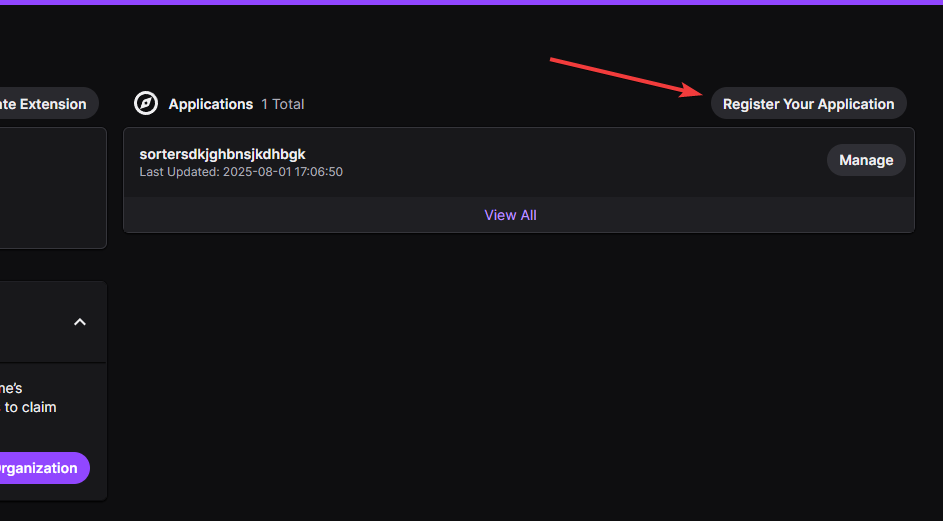
In there name your app. Doesn't matter what you put in there. Even garbled mess name like mine on the screenshot will work.
For OAuth Redirect URLs put in http://localhost:8080. Do not put any more slashes after the port number.
For category select at random and Client Type select Confidential. Click save and go to Manage and look for your Client ID. Copy it and save it somewhere. Under your client ID you should see a Client Secret:
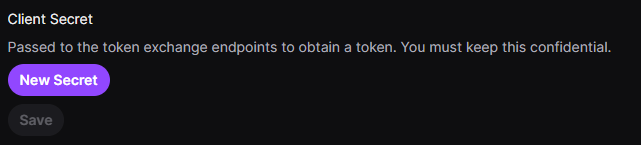
Click New Secret, copy it and save it for later.
Now let's find your User ID. Go to https://www.streamweasels.com/tools/convert-twitch-username-to-user-id/ put in your twitch channel name, generate your ID and save it.
Moving onto the coding part
The script that I created is written in Python so you need it installed on your computer before we can continue. You can go to their official website and install it from there using their installers or you can use winget command if you're on Windows. Just open your CMD as admin, paste in winget install -e --id Python.Python command and press enter.
Once Python is installed on your PC we need to also install some prerequisites/libraries to make our code work. Open your CMD again as admin and use the command below:
Command to install prerequisites
pip install requests pandas openpyxl
Download the code below and open it in your code editor or even notepad as long as you can edit your code.
Take your time to look through it first and inspect it just in case you don't trust me. There is no malicious things in there and you can always check everything yourself or ask your friend to intepret the code for you.
You might notice this part of the code at its' very beginning
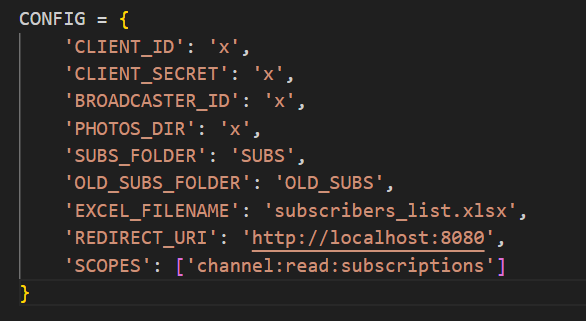
This is where we have to put in all our information we saved earlier. Put your IDs and Secret in the place of x. Do not remove the apostrophes. When it comes to your PHOTOS_DIR string make sure to put in your directory where your photos are placed with two slashes so it has to be like this:
'PHOTOS_DIR': 'C:\\Path\\To\\Your\\Photos'and NOT like this:
'PHOTOS_DIR': 'C:\Path\To\Your\Photos'Okay so we got everything set up. Save your code and open up your command console again in the directory where your code file is placed.
Do mind that this code will generate two folders for subs, nonsubs and Excel file that includes all your subscribers. I would suggest to create a parent folder with all your photos in it. Put your code file in there too to prevent mess from happening and keeping it all organized
Run the command python PhotoSubOrganizer.py. Script will open up your browser asking you to authorize your Twitch account. Click accept and the code, using your API key, will gather all your subs analyze them. It will then create folders and sort photos in them. In console you will see who was moved where. There you can also see errors if there are any.
Enjoy!